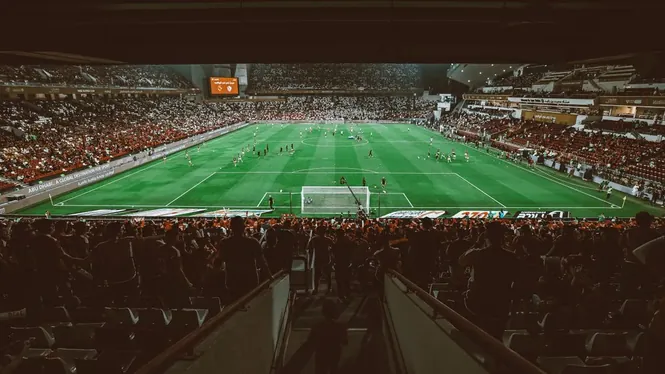
Camel Live on Tablet and Android TV: Bigger Screen Guide
Use Camel Live on Android tablets and Android TV: layout, live scores on a bigger screen, setup steps, and what works best when football moves off your phone.
By Camel Media
Phones are personal, but football is social. A tablet on the kitchen table or an Android TV in the living room turns score checking into a shared habit. The Camel Live APK runs on compatible Android tablets and TV devices, and this guide explains what the bigger screen experience does well and where the phone still wins.
Installation follows the same APK route as on a phone, with a few TV specific wrinkles around navigation and sideloading that the setup section covers.
What Works Best on a Bigger Screen
Standings, fixtures and stats are the winners. A league table that needs scrolling on a phone breathes on a tablet, and a full match stats page, shots, possession and events together, reads like a newspaper panel instead of a ticker.
Tablets also suit the second screen role during televised matches: scores from other grounds, the live table, and news at half time, all without the small screen squint. Households that follow different clubs can pass one tablet around far more gracefully than a phone.
Fixtures planning is a tablet pleasure. A whole month of your club's matches, league, cups and Europe interleaved, can be reviewed in one sitting on a large screen, and clashes with family events spotted weeks early.
Bigger screens suit:
- Full league tables without scrolling
- Match stats pages read at a glance
- A month of fixtures reviewed together
- Half time scores during televised matches
- Long news features read comfortably
- Shared score checking with family
Installing on a Tablet
Tablet installation mirrors the phone process: download the APK, allow installation from the browser or file manager when Android asks, install, and open. The full walkthrough lives in our Camel Live installation guide, and every step applies unchanged to tablets running a compatible Android version.
On first open, set your followed teams and alerts exactly as on your phone. Tablets are often shared, so keep the follow list to household favourites rather than one person's entire football life, and check notification settings if the tablet lives in a bedroom.
Tablets used by children deserve a permissions pass after installation. Check what the app can access, set the tablet's own parental controls as you normally would, and keep the followed content to the household's shared teams.
Android TV: What to Expect
Android TV changes the input, not the football. Navigation runs through a remote, so screens built around lists, fixtures, standings and scores work naturally, while anything needing fast typing, like search, is slower. The living room TV shines as a scoreboard during gatherings: one screen everyone can glance at.
Installing APK files on TV usually involves sending the file from a phone or downloading it through a TV browser, then allowing installs for that source. It is a few extra steps compared with a phone, and worth doing once, carefully, from the same trusted download source described on this site.
Not every Android TV is equal. Older sets and sticks can be slow to open sideloaded apps, so patience at first launch and keeping the TV's storage uncluttered make a visible difference to how the scoreboard behaves on a big night.
For a smooth TV setup:
- Install from the same trusted source as the phone app
- Allow installs for the source you used, then review it
- Connect the TV to the same Wi-Fi as your phone
- Test navigation with the remote before match day
- Keep the TV storage from filling completely
- Update the app when new versions are listed
Phone, Tablet or TV: Choosing for Each Moment
Think of the devices as a team. The phone is the personal tracker: alerts, quick checks, and the commute. The tablet is the analyst's desk: tables, stats and long news reads. The TV is the shared scoreboard for match gatherings and final day drama when every score matters to the room.
Keeping follows consistent across devices avoids confusion. When a team is added on one device during a tournament, add it on the others in the same sitting, and remove finished competition follows everywhere when the medals are handed out.
Away from home, the balance flips back to the phone entirely. The bigger screens are home infrastructure; the phone is the traveller. Keeping the same account habits and follows on each means the story continues seamlessly between them.
Casting Camel Live from the phone is the halfway house between the small screen and a native TV setup. It suits households that gather occasionally rather than weekly, because no permanent installation is needed for the television to join match day, and Camel Live scores appear on the big screen in seconds.
Troubleshooting Bigger Screen Issues
Layout quirks are the common complaint: an app designed for portrait phones can look stretched in landscape. Rotating the tablet, or accepting a centred phone style layout, resolves most cases, and core content like scores and tables remains fully readable.
If the app will not install on a TV or tablet, check the Android version against the requirement and confirm the file downloaded completely. The general fixes in our connection and loading fixes guide cover the network side of bigger screen problems too.
If text looks small on a TV across the room, the TV's own display and accessibility settings can scale the interface. A minute in the TV settings often fixes what looks like an app problem from the sofa.
One Camel Live, Every Screen
The value of running Camel Live on several screens is continuity. The teams you follow, the competitions you track and the habits you build on your phone all make sense on the tablet and the TV, because Camel Live presents the same football world at every size.
Start with the phone, where Camel Live lives in your pocket, and add the bigger screens when you are ready. Each one takes minutes to set up, and together they cover every way a household watches football across a week, from the commute to the cup final.
Quick Tips for Bigger Screens
Put the tablet where the football conversation happens, usually the kitchen or beside the main screen. A shared glanceable table at half time settles more arguments than any replay.
On final day, when every match kicks off together, the TV scoreboard earns its year. Set it up in the morning, test it once, and let the phone stay in your pocket for alerts alone.
Conclusion
Camel Live grows naturally onto bigger screens: tablets for tables and long reads, Android TV for the shared scoreboard, and the phone still in your pocket for alerts. Set each device up once and football finds the right screen for every moment of the week.